![logo inverted.png]](https://www.proagenda.com/hs-fs/hubfs/logo%20inverted.png?height=50&name=logo%20inverted.png)
-
Log into your account and go to "Clients"
-
Click "Import"
-
Click "Download Template". This will download a template file in which you need to add your contacts to be able to import them.
-
Search for the file in your downloaded documents.
Make sure to use this file from this point.
-
Enter your clients' information in the file. You can do many clients at the same time by copy-pasting.
Make sure that First name, Last name, E-mail address, and phone number all have their own column. If they start off in one column together, split them by using TEXT TO COLUMN.
-
The columns need to remain the same as the downloaded documents. Do not change the order.
-
Here is an example of how it should look:
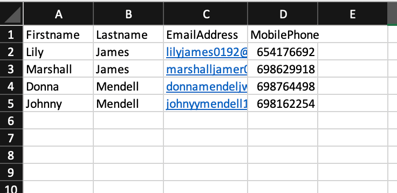
- Check to see if all clients are added and save to your device.
Save as a .csv file!
-
Return to ProAgenda and select "choose file".
-
Select your file and press "Import".
-
All clients successfully imported will receive an e-mail to complete their registration to ProAgenda. These clients will now show in your clientlist.
You can use the "Download logs" button to see failed imports. You can adjust them and import again. Imports can fail by having spaces or capital letters where they don't need to be. Make sure to check.